


 through our G2G profile

 LoL Accounts
 Valorant
 WoW accounts
Valorant error codes come in two flavors: VAL (the game client or Riot’s servers broke something) and VAN (Vanguard, the anti-cheat, is unhappy). I’ve hit probably 15 of these across my main and alt accounts over the past year. A restart fixes most of them. Some want you poking around in BIOS. And a couple just mean you’re done playing on that account forever.
I grabbed the full list off Riot’s support page, but honestly their fixes are useless for half the codes (“restart your client” shows up like 30 times, I counted). So I mixed in what actually works based on Reddit threads, Discord posts, and my own trial and error. This covers all Valorant error codes as of Patch 12.06, Season 2026 Act 2.
Quick Reference: Most Common Valorant Error Codes
Not reading 4000 words. Got it. Here’s the short version. Find your code in this table, do what it says. If that doesn’t fix it, then come back and read the actual section.
| Error Code | Means | Quick Fix |
|---|---|---|
| VAL 0 / VAL 1 | Can’t connect | Restart Riot Client + flush DNS |
| VAL 19 | Riot servers down | Wait for Riot to fix it |
| VAL 29 | Firewall blocking | Add Valorant to firewall exceptions |
| VAL 43 | Timeout | Restart client, close background apps |
| VAL 45 | Vanguard needs reboot | Restart PC (not just client) |
| VAL 46 | Maintenance | Wait 2-4 hours |
| VAL 57 | Vanguard not running | Restart PC, set vgc service to Automatic |
| VAL 61 | Account banned | Submit Riot Support ticket |
| VAN 0 | Your connection | Restart PC to reload Vanguard |
| VAN 9001/9003 | Vanguard init fail | Enable Secure Boot + TPM 2.0 in BIOS |
| VAN 152 | Hardware ban | Wait ~4 months or submit ticket |
Valorant Error Codes: VAL vs VAN Explained
First thing: look at the letters before the number. VAL or VAN. That alone tells you where to start.
VAL errors = something between you and Riot’s servers went wrong. Could be your internet, could be their platform having a bad day, could be your account got restricted. Restarting the Riot Client handles most of these. When it doesn’t, it’s usually a “wait for Riot to fix their stuff” situation.
VAN errors = Vanguard is throwing a fit. This is Riot’s kernel-level anti-cheat, and it boots up with your PC. You can’t just restart the game to fix VAN errors. You need a full PC reboot because that’s the only way Vanguard reloads. And sometimes the issue is in your BIOS (Secure Boot, TPM), which means you’re rebooting into firmware settings. Fun times.
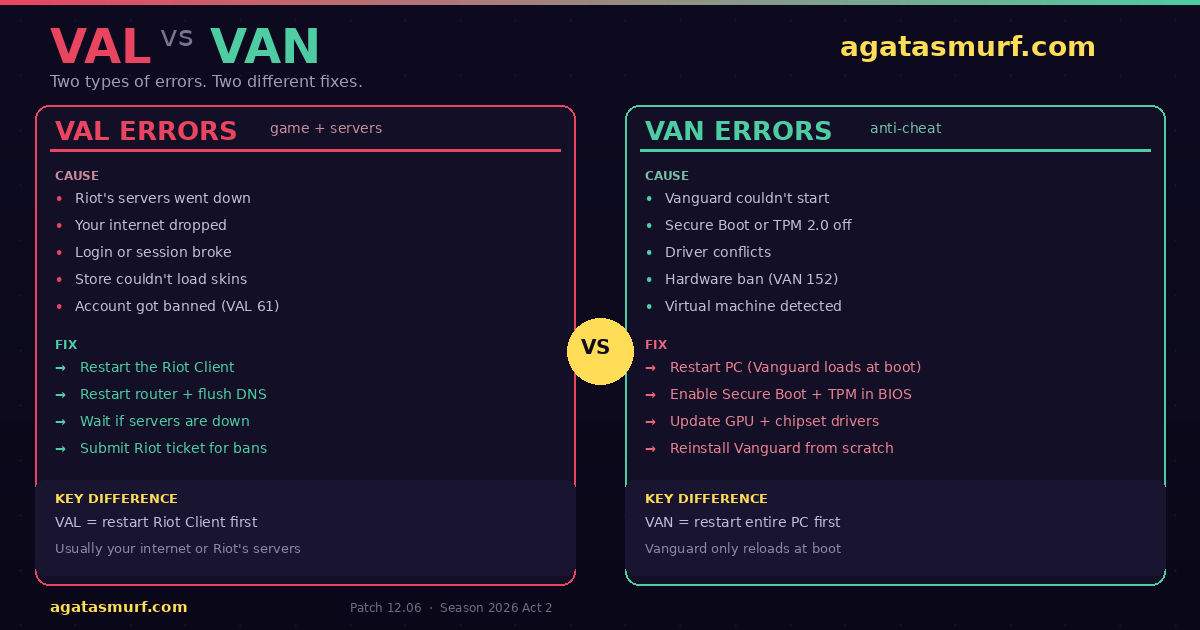
Quick rule of thumb: if the error has a number under 100, it’s probably a VAL error. If it has a number in the thousands (9001, 9003, 9100), it’s definitely Vanguard.
Complete List of VAL Valorant Error Codes
Here is the full table of VAL errors pulled from Riot’s official Valorant support page. So I added a “real fix” column because, if you’ve been looking up Valorant error codes for more than five minutes, you’ll know, Riot’s solutions are basically “restart your client” for 90% of these.
| Code | What It Means | Official Fix | What Actually Works |
|---|---|---|---|
| VAL 0 | Connection error | Restart client | Restart client + router. Flush DNS if it persists |
| VAL 1 | Connection error | Restart client | Same as VAL 0 |
| VAL 4 | Invalid display name | Change Riot ID | Go to account.riotgames.com and update your Riot ID |
| VAL 5 | Logged in elsewhere | Log out all devices | Log out everywhere, change your password if you didn’t log in on another device |
| VAL 7 | Session service failure | Restart client | Check email for suspension notice. Could also be a platform-wide issue |
| VAL 8-21 | Riot Client problems | Restart client | Restart client. If it loops, close all Riot processes in Task Manager first |
| VAL 29 | Network / firewall issue | Check firewall | Add Valorant + Riot Client to firewall exceptions. Disable VPN |
| VAL 38 | Connection error | Restart client | Check Riot server status. If servers are fine, restart router |
| VAL 39 | Server unavailable | Try later | Maintenance or emergency downtime. Just wait |
| VAL 43 | System timeout | Restart client | Close background apps eating bandwidth. Restart client |
| VAL 44 | Vanguard not initialized | Restart client / reinstall Vanguard | Restart PC. If that doesn’t work, uninstall Vanguard and relaunch Valorant |
| VAL 45 | Vanguard reboot needed | Restart client / reinstall Vanguard | Restart PC (not just the client). Check if antivirus is blocking Vanguard |
| VAL 46 | Platform maintenance | Try later | Planned downtime. Nothing is broken. Go make coffee |
| VAL 49-50 | Chat/voice init failure | Restart client | Restart client. If voice stays broken, check Windows mic permissions |
| VAL 51 | Party system error | Restart client | Restart client. If parties still break, everyone in the party should restart |
| VAL 52-56 | Various init failures | Restart client / submit ticket | Restart client. If repeating, check support site banners for outages |
| VAL 57 | Vanguard not running | Restart client / submit ticket | Restart PC. Reinstall Vanguard. Check for conflicting software |
| VAL 59 | Login queue failure | Restart client | Usually happens during peak hours or after patches. Wait and retry |
| VAL 61 | Account banned | Submit ticket | Your account is banned. Appeal through Riot Support if you think it’s wrong |
| VAL 62 | No game pods to ping | Restart client / submit ticket | Network issue. Flush DNS, restart router, check if ISP is blocking game traffic |
| VAL 68-70 | Content/wallet fetch error | Restart client | Riot’s store backend is struggling. Wait a few minutes, restart |
| VAL 128 | Connection error | Restart PC / reinstall | Full reinstall of both Valorant and Vanguard. Nuclear option but it works |
| VAL 138 | Virtual machine detected | Use physical PC | Valorant does not run on VMs. Period. Install on a real Windows machine |
| VAL 152 | Hardware ban | Submit ticket | HWID ban, typically lasts 4 months. Contact Riot if you bought a used PC |
All VAN Valorant Error Codes (Vanguard)
Now the Vanguard side of things. VAN errors are the other half of the Valorant error codes list. Because Vanguard hooks into your OS at the kernel level and loads when Windows boots, you can’t fix these by just closing the game. Full reboot, every time.
| Code | What It Means | How to Fix It |
|---|---|---|
| VAN 0 | Player-side connection error | Restart Valorant, then Riot Client. If stuck, reboot PC to reload Vanguard |
| VAN -81 | Service start failed | Restart PC. If repeating, uninstall Vanguard + Valorant and do a fresh install |
| VAN 79 | Vanguard restriction | Reset Winsock (netsh winsock reset in admin CMD). Reinstall Vanguard |
| VAN 128 | Connection error from Vanguard | Restart PC. Reinstall Vanguard and Valorant if it keeps happening |
| VAN 140 | Windows version too old | Upgrade from Windows 7 to Windows 10 or 11. Valorant dropped Win7 support |
| VAN 152 | HWID ban | Hardware ban lasting ~4 months. Submit a Riot ticket if you think it’s an error |
| VAN 185 | Vanguard restriction | Restart Riot Client, reinstall Vanguard. Check BIOS for Secure Boot |
| VAN 1067 | Driver component error | Update GPU and chipset drivers. Check Windows Update too |
| VAN 9001 | Vanguard not initialized | Enable Secure Boot in BIOS/UEFI. Restart PC |
| VAN 9003 | Vanguard not initialized | Enable TPM 2.0 in BIOS/UEFI. Also check Secure Boot |
| VAN 9100 | Virtual environment detected | Running in a VM is blocked. Use a physical Windows install |
The 9000-series VAN errors blew up on Reddit around late 2025. Riot cranked Vanguard enforcement way up for Windows 11 and suddenly thousands of people who’d been playing fine for years couldn’t launch anymore. OS upgrade? That’ll do it. Messing with BIOS for overclocking? Yep. Turned off Secure Boot so you could dual-boot Ubuntu? Well, congratulations. Because Vanguard hates you now.
Fixing the Most Common Valorant Error Codes
Some Valorant error codes show up ten times more often than others. These are the ones that fill r/VALORANT every single patch day. I’m going to walk through each one with what Riot says and what people (including me) have actually done to fix them.
Valorant Error Codes VAL 0 and VAL 19: Connection Fix
So here’s the thing. Two codes, same error message, totally different causes. VAL 0 means YOUR connection is busted. VAL 19 means RIOT’S servers are busted. The game doesn’t really help you tell them apart, which is annoying.
VAL 0 fix: close the Riot Client. Actually close it. Not the X button, go into Task Manager and kill it. Now unplug your router for 10 seconds. Plug it back in. While you’re waiting for it to reconnect, open CMD as admin and type ipconfig /flushdns. Relaunch Valorant. Oh, one more thing. Check your antivirus quarantine folder. I’ve had Windows Defender randomly eat Riot files before, no warning, just gone.
But VAL 19? That’s a Riot problem, not yours. Since it’s on their end, there’s not much to do. You can check their server status page, or just search “VALORANT down” on Twitter. If your entire feed is people complaining, cool, it’s not just you. Go eat something. Try again in half an hour.
Valorant Error Code VAL 45: Vanguard Reboot Fix
Basically, Vanguard wants a reboot but can’t do it on its own. You gotta shut down the whole machine. Also not sleep or hibernate. An actual restart.
- Close Valorant
- Hit Start, click Power, click Restart. Let Windows do its thing
- Don’t launch Valorant the second you see your desktop. Give Windows like 30 seconds to load all services
- Still getting it? Blame your antivirus. Bitdefender is the worst offender, but Kaspersky and Avast pull the same stunt. They see Vanguard loading at the kernel level and freak out. Go into your AV settings, find the exclusions or whitelist section, and add the whole Riot Vanguard folder
- Nothing? Okay, scorched earth time. Open
C:\Program Files\Riot Vanguard\in File Explorer. Run uninstall.exe. Let it do its thing. Now open Valorant and it’ll download Vanguard from scratch. Clean slate
VAL 46: Just Maintenance
Relax, though. VAL 46 just means Riot pulled the servers down for scheduled work. Because your PC is fine. Your account is fine. Everything is fine. Go touch grass or something. Typically maintenance windows last 2-4 hours, and Riot posts the schedule on their community trackers and Discord beforehand.
Valorant Error Code VAL 57: Vanguard Not Running
This is probably the most complained-about error on Reddit. VAL 57 = Vanguard isn’t running. It should start with Windows automatically, but sometimes it just… doesn’t. Maybe a Windows update broke it. Maybe another program killed the service. Who knows.
So restart your PC. That alone clears it maybe 7 out of 10 times. Still there? Okay, now you gotta manually poke the Vanguard service:
- Win+R, type
services.msc, Enter - Find “vgc” in that giant list. Scroll down, it’s near the bottom
- Double-click it and change Startup type to Automatic
- Hit the Start button inside that same window, then OK
- Try Valorant now
But if vgc is refusing to start at all? Then something else on your system is fighting it. I’ve seen FaceIT anti-cheat cause this, plus EasyAntiCheat, some older antivirus builds, and weirdly enough some Asus motherboard utilities. Kill whatever’s conflicting, update your chipset drivers, try again.
Absolute last resort: uninstall Vanguard entirely and let Valorant pull a clean copy on launch. A few people on Reddit also say running Valorant in compatibility mode worked for them on older rigs. I’d exhaust everything else before going there, though.
VAL 61: Your Account Is Banned
The one nobody wants to see. VAL 61 = you’re banned. Can’t play. Done.
Why? Usually one of these:
- You cheated (or Riot thinks you did)
- You were toxic enough times that the penalty escalated to a full ban
- You exploited a game-breaking bug on purpose
- Someone hacked your account and did any of the above
Temp bans last a couple hours on the short end, maybe two weeks on the long end. Perma bans are exactly what they sound like. If it was cheating, though? Riot doesn’t give second chances on that. Toxicity is different, though. Since it’s toxicity, you would have gotten a chat restrict first. Then a short ban. Then a longer ban. Then VAL 61. If you ignored all those warnings… well.
But what if you got hacked and someone ruined your account? False positive? Because that does happen. Head to Riot’s support page and file a ticket. Pick “Account Bans & Restrictions” as the category. Instead, keep it short and factual. “My account was compromised on this date, here’s proof” works way better than a three-paragraph rant about how unfair the system is. Riot has overturned bans before on hacked accounts. Actual cheaters? Don’t bother, they won’t even read your ticket.
And look, if you got banned and need a fresh start, ranked-ready Valorant accounts are an option. Once you’re set up, check out how to level up fast in Valorant to get back into competitive. Just don’t do whatever got you banned in the first place.
VAN 9001 and VAN 9003: BIOS Settings You Need to Check
So, two different numbers but one problem. Your BIOS doesn’t have Secure Boot turned on, or TPM 2.0 is disabled, or both. Vanguard checks for these at boot and if either one is missing, it doesn’t even try to start.
Here’s how to fix these Valorant error codes:
- Reboot. First, spam your BIOS key (DEL on most boards, sometimes F2 or F12) before Windows loads
- Find Secure Boot. Every manufacturer buries it somewhere different, though. Usually it’s under Security, Boot, or Authentication tabs. Then flip it to Enabled
- Now TPM. This one has different names depending on your CPU. Intel boards list it as “Intel PTT” (Platform Trust Technology). AMD calls it “fTPM.” Might also just say “TPM.” Whatever it’s called on your board, flip it to Enabled
- Save and exit. F10 usually
- Let Windows boot fully, then try Valorant
If you’re running Windows 11, these should both already be on. Win11 literally refuses to install without them. But people turn Secure Boot off all the time for Linux dual-boots, and some random overclocking tutorial from 2023 probably told you to disable it too. But Vanguard does not care about your reasons.
One more thing. I’ve seen cases where you flip these settings on and Vanguard still doesn’t register it after a normal reboot. Try a full shutdown (not restart, actual power off) and boot fresh. Kernel-level drivers can be picky about when they re-read hardware security flags.
VAN 152: Hardware Bans Explained
Now this one’s rough. VAN 152 means Riot didn’t just ban your account. They banned your actual hardware. Every single account you log into from that PC gets auto-flagged.
How long does it last? Riot’s support page puts it at around 4 months. After that timer runs out, the hardware fingerprint clears and you can make a new account on that same rig.
And here’s the part that makes people mad. You can get VAN 152 without doing anything wrong. Bought a used rig off Craigslist or Facebook Marketplace? Previous owner was cheating? Well, that hardware ban is yours now. I’ve seen at least a dozen r/VALORANT threads about this exact scenario. So the best you can do is write Riot a ticket, tell them you bought the PC secondhand, maybe attach a receipt. I’ve seen some people get unbanned. Others get a copy-paste response and nothing changes. It’s basically a coin flip.
7 Steps to Fix Most Valorant Error Codes
No idea which Valorant error codes number you’re seeing? Or maybe you just don’t feel like reading individual sections. Fine. Just run through this list top to bottom and stop whenever your game starts working again.
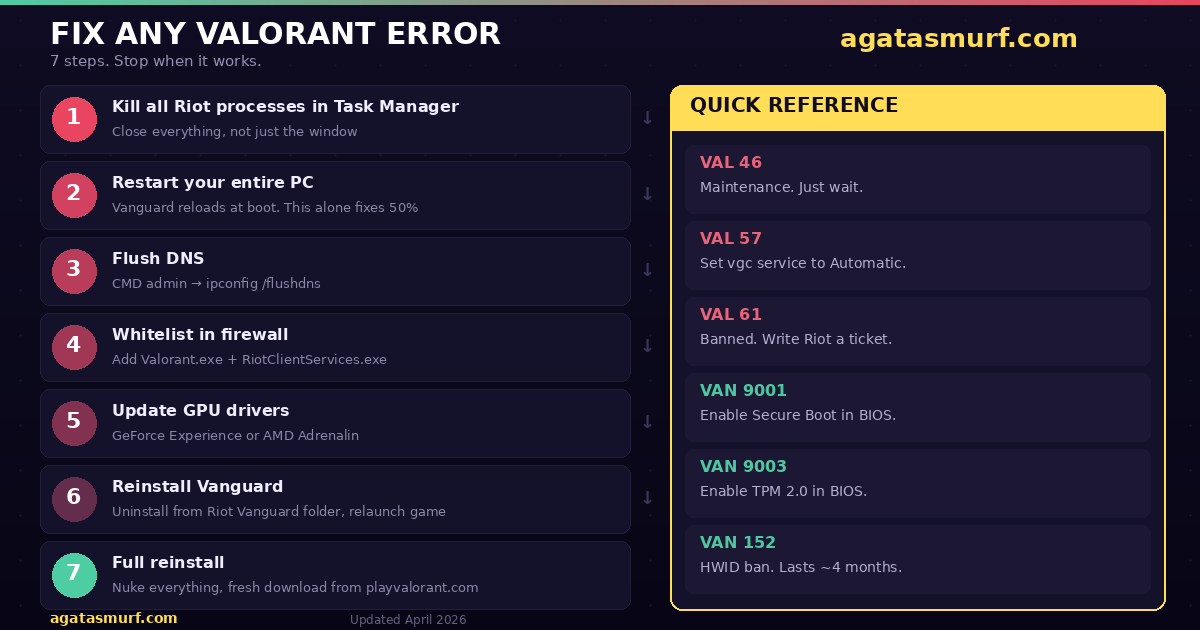
- Kill everything Riot-related. Ctrl+Shift+Esc for Task Manager. Scroll through the list and end task on anything with Riot, Valorant, or Vanguard in the name. All of them. Now relaunch the client
- Reboot. Actual restart. Not sleep. This is the single most effective fix because Vanguard reloads fresh on boot
- DNS flush. Open CMD as admin.
ipconfig /flushdns. Done in two seconds but clears out stale network data that can block connections - Whitelist in firewall. Windows Firewall sometimes decides Valorant.exe or RiotClientServices.exe is suspicious. Add both to your allowed apps list
- Drivers. When was the last time you updated your GPU drivers? Be honest. Go grab the latest from GeForce Experience or AMD Adrenalin. Old drivers are behind more errors than people realize
- Blow up Vanguard. Open
C:\Program Files\Riot Vanguard\and run uninstall.exe. Then open Valorant. It then re-downloads a clean copy of Vanguard automatically - Scorched earth. Uninstall the game entirely. Then manually wipe the leftover Valorant folders in AppData\Local and Program Files. Download a totally fresh installer from playvalorant.com
If you went through all seven and you’re still stuck? Then it’s probably not you. Either Riot’s servers are having a moment (wait a few hours) or your account has a restriction on it (you’ll need a support ticket for that). In my experience, though, step 2 handles like half of all errors on its own. Reboot is king.
Windows 11 Specific Issues
Win11 is a special case when it comes to Valorant error codes. It and Vanguard have a love-hate relationship. Microsoft made security requirements stricter, and Riot took that as an invitation to enforce even more checks. If you recently moved to Win11 or built a new rig, watch out for these:
- Secure Boot off = no Valorant. Win11 needs it, Vanguard needs it. If you turned it off for any reason at all, the game won’t launch
- TPM 2.0 same deal. Must be enabled. Both Win11 and Vanguard require it
- Memory Integrity (Core Isolation) fights with Vanguard on some setups. If you started getting random VAN errors after enabling Memory Integrity in Windows Security, turn it off and test. One of those “pick one” situations
- Overlays are worse on Win11. Discord overlay, GeForce overlay, any “game booster” app. Because they cause more VAN conflicts on Win11 than they ever did on 10. Just turn them all off if you’re troubleshooting
Also Riot keeps tightening the screws on Vanguard every few patches, so errors that didn’t exist six months ago can randomly appear after an update. Keep Windows patched and you’ll dodge most of the new ones.
How to Check Valorant Server Status
Stop troubleshooting your own PC for five minutes and check if Riot broke something. It usually saves a lot of frustration.
- First, hit up the Valorant player count and status page to see if servers are acting up
- Look at the banners on Riot’s support site. If there’s a known outage, they usually post it there
- Jump into the Valorant Discord. If the general channel is on fire, it’s probably not just you
- Search “#VALORANT” plus your error code on Twitter/X. You’ll find out in 30 seconds if it’s widespread
But if half the playerbase is screaming about the same code, don’t touch your BIOS. Don’t reinstall anything. Just wait a few hours. Riot’s infrastructure team usually has it sorted by then.
How to Submit a Riot Support Ticket
For errors that can’t be fixed on your end (VAL 61 bans, persistent VAN errors, false HWID bans), you’ll need to contact Riot directly.
- Go to the Valorant support site at support-valorant.riotgames.com
- Log in with your Riot account
- Click “Submit a Ticket” at the bottom of any support article
- Pick the category that matches your issue (Account Bans, Technical Issues, etc.)
- Describe your problem with specific details: error code, when it started, what you’ve already tried
- Attach screenshots if you have them
Response times vary, but typically you’ll hear back within 24-48 hours. Be patient and be specific. When dealing with stubborn Valorant error codes, vague tickets like “I can’t play, please help” take longer to resolve than “I’m getting VAN 152 after buying a used PC, here’s my hardware info.”
Valorant Won’t Open at All? Start Here
Sometimes you don’t even get an error code. You click Play, the Riot Client flashes, and nothing happens. No error, no game, nothing. This is weirdly common after major patches (like the Act 2 Patch 12.05 update that dropped Miks).
Try these steps in order:
- Open Task Manager (Ctrl+Shift+Esc). Kill every process that says “Riot”, “Valorant”, or “Vanguard”. Then try again
- Right-click the Riot Client shortcut and select Run as administrator
- Delete the Valorant cache: go to
C:\Users\YourName\AppData\Local\and delete the VALORANT folder. The game rebuilds it on launch - Use the Riot Client’s built-in repair tool (click the gear icon next to the Play button)
- Also check if your antivirus quarantined any Vanguard files. Whitelist the entire Riot Games folder
If Valorant still won’t open, do a clean boot. Press Win+R, type msconfig, go to the Services tab, check “Hide all Microsoft services”, then click “Disable all”. Restart. If the game works now, one of your background services was conflicting with Vanguard. Re-enable them one by one to find the culprit.
For example, the most common conflicters I’ve seen on Reddit: FaceIT anti-cheat, Razer Cortex, MSI Afterburner (older versions), and some Asus Armoury Crate builds. If you’re running any of those, try disabling them before launching Valorant.
Advanced Network Fixes for Valorant Error Codes
If basic Valorant error codes fixes (restart, flush DNS) aren’t working for connection issues like VAL 0, VAL 19, VAL 29, or VAL 62, try these more aggressive network resets:
Full Network Stack Reset (Windows)
Open Command Prompt as administrator and run these commands one by one:
ipconfig /flushdnsipconfig /releaseipconfig /renewnetsh winsock resetnetsh int ip reset
After running all five commands, restart your PC. This basically wipes your network config back to factory and rebuilds it. It’s the nuclear option for connection errors, but I’m not gonna lie, it fixes stuff that nothing else touches.
Switch to Google or Cloudflare DNS
Sometimes your ISP’s default DNS can cause routing problems to Riot’s servers. Switching to a public DNS often fixes connection Valorant error codes that nothing else will touch.
Go to Settings, Network & Internet, Change adapter options, right-click your connection, Properties, select IPv4, and set:
- Google DNS:
8.8.8.8and8.8.4.4 - Cloudflare DNS:
1.1.1.1and1.0.0.1
I personally use Cloudflare and haven’t had a DNS-related connection error since switching. It also shaved about 5ms off my ping in ranked games, which is a nice bonus.
Check If Your ISP Is Throttling Game Traffic
If the usual Valorant error codes fixes aren’t helping, your ISP might be the problem. Some of them throttle gaming traffic during peak hours. If you’re getting connection errors only in the evening, try connecting through a VPN temporarily to test. If the error goes away on VPN, your ISP is the problem. Call them or switch to a gaming-optimized plan if available.
Valorant Error Codes After a Patch Update
Patch day is error day. Every time Riot pushes a new update (we’re on Patch 12.06 in Season 2026 Act 2 right now), a wave of Valorant error codes floods Reddit and Twitter. This is normal, though.
The pattern is almost always the same: Riot takes servers down for maintenance (VAL 46), the patch rolls out, and then some percentage of players get hit with VAL 43, VAL 44, or VAL 57 because Vanguard needs to update alongside the game client.
If you get errors right after a patch:
- Wait 30 minutes. Seriously. After all, server-side rollouts aren’t instant, and your region might still be updating
- Restart your PC completely (Vanguard updates require a reboot)
- If the Riot Client shows an update, let it finish before launching the game
- Clear the Valorant local cache if you’re stuck in an update loop
Riot usually acknowledges widespread post-patch errors on their Discord and Twitter within an hour or two. If your specific error isn’t being talked about anywhere, it’s more likely a local issue on your end.
Valorant Error Codes in Ranked and Competitive
Some Valorant error codes only show up when you’re trying to queue for competitive mode. The most common ones:
- VAL 7 with ranked queue: Could mean a suspension is active on your account. Check your email for a notice from Riot. Competitive bans for AFK/dodging won’t trigger VAL 61 (full ban), but VAL 7 can appear during a ranked restriction
- VAL 51 in party: The party system sometimes breaks after server restarts. Everyone in the party needs to restart their client. The party leader should recreate the lobby
- VAL 62 only in ranked: Rare, but it can happen when your connection to a specific game pod is failing. Try switching your preferred server in settings. If you’re on auto-select, manually pick the closest server
If you keep getting errors specifically when queuing ranked but unrated works fine, your account standing might be the issue. Ranked restrictions from dodging, AFK penalties, or pending verifications can cause vague errors that don’t clearly state what’s wrong.
FAQ
What is the difference between VAL and VAN error codes in Valorant?
VAL errors come from the game client or Riot’s servers. They cover connection failures, login problems, and account bans. VAN errors come from Riot Vanguard, the anti-cheat system. They usually point to driver conflicts, BIOS settings like Secure Boot or TPM 2.0, or hardware bans.
How do I fix Valorant error code VAL 57?
VAL 57 means Riot Vanguard is not running. Restart your PC first, since Vanguard loads at boot. If that does not work, uninstall Vanguard from C:\Program Files\Riot Vanguard\uninstall.exe, then relaunch Valorant to trigger a fresh install. Also check that no third-party software is blocking Vanguard.
What does VAL 61 mean in Valorant?
VAL 61 means your Valorant account has been banned. Bans can be temporary (hours to days) or permanent. If you believe it was a mistake, submit a support ticket through the Riot Games support site under Account Bans and Restrictions. Be specific and polite in your appeal.
How do I fix VAN 9001 and VAN 9003 in Valorant?
Both VAN 9001 and VAN 9003 mean Vanguard failed to initialize. The usual fix is enabling Secure Boot and TPM 2.0 in your BIOS or UEFI settings. Restart your PC after making the changes. If you are on Windows 11, these settings should already be enabled, so check for driver conflicts instead.
What is VAN 152 and how long does a hardware ban last?
VAN 152 is a hardware ID (HWID) ban. Riot has blacklisted your PC’s hardware fingerprint, not just your account. According to Riot’s official support page, HWID bans typically last around 4 months. You can submit a ticket if you believe the ban was applied in error, for example if you bought a used PC.
Why does Valorant keep showing connection errors?
Repeated connection errors like VAL 0, VAL 19, or VAN 0 usually come from unstable internet, DNS issues, firewall blocking, or Riot server problems. Try restarting your router, flushing your DNS cache with ipconfig /flushdns in Command Prompt, and making sure your firewall allows Valorant and the Riot Client through.
Can I play Valorant on a virtual machine?
No. Valorant does not allow virtual machines. If Vanguard detects a VM, you will get error code VAL 138 or VAN 9100. You need to install Windows and Valorant on a physical PC to play.
Last updated: April 2026
