


 through our G2G profile

 LoL Accounts
 Valorant
 WoW accounts
League of Legends Ping Test: Check Your Ping Before You Play
The LoL ping test above lets you check ping to Riot Games’ servers before you queue. Select your region, hit the button, and you get your min, max, and average latency in about 10 seconds. Below 50ms? Queue ranked. Above 100ms? Every Flash and every skillshot is going to feel delayed. I run one before every session.
I run a quick LoL ping test before basically every session now, especially after Riot moved some routing around in early 2026. The results are HTTP-based (not raw ICMP), so your actual in-game ping might differ by 5 to 15ms. But the tool is accurate enough to tell you whether tonight is a “play ranked” night or a “go play ARAM and chill” night.
What Ping Means in League of Legends (And Why It Matters)
Every time you click, your PC fires a packet to Riot’s server. The server reads it, processes it, and fires the result back. The time that round trip takes? That’s your ping.
Don’t confuse ping with FPS. Your GPU handles FPS, that’s frame rendering. Ping is completely separate, it’s your network. 300 FPS means nothing when your ping sits at 200ms, your champion will still slide around the map like you’re playing on hotel Wi-Fi.
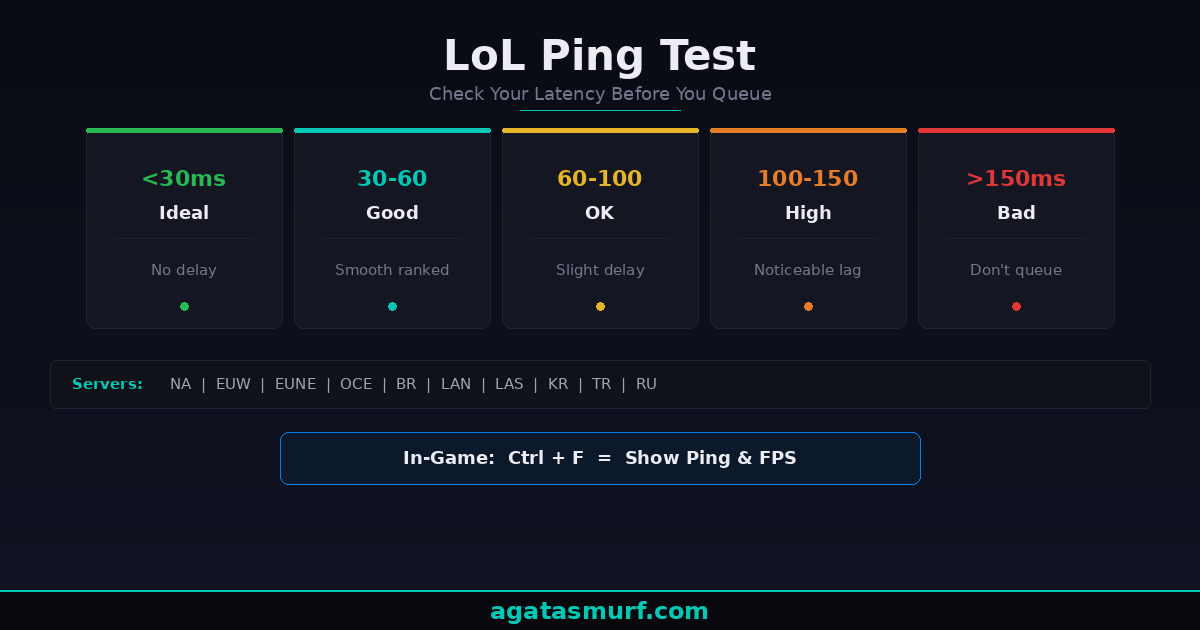
Forget the technical definition. What matters is how different ping ranges actually feel in game:
| Ping Range | Rating | What It Feels Like |
|---|---|---|
| Under 30ms | Ideal | Zero noticeable delay. Pro-level responsiveness. |
| 30 to 60ms | Good | Smooth gameplay. Most ranked players sit here. |
| 60 to 100ms | Playable | Slight input lag. You can feel it on fast combos and flash plays. |
| 100 to 150ms | High | Clear delay on abilities. Dodging skillshots becomes a guessing game. |
| Over 150ms | Unplayable | Rubberbanding, teleporting, and constant desync. Don’t queue ranked. |
I notice the difference hard on Yasuo, Lee Sin, and Thresh. Landing a Thresh hook on 90ms when the enemy is strafing feels borderline impossible compared to 30ms. And Insec kicks on Lee? At 80ms the ward hop just doesn’t snap the same way.
This video walks through the main causes of high ping and how to actually fix them:
How to Test Your LoL Ping In-Game
The fastest way is pressing Ctrl+F during any match. Your current ping and FPS show up in the top-right corner of the screen. Riot covers this in their official Smart Ping support article.
If that shortcut does nothing, the keybind might be unassigned. Fix it like this:
- Hit Escape to open the settings menu during a game.
- Go to the Hotkeys tab.
- Scroll down and click on Display.
- Find Toggle FPS Display and bind it to Ctrl+F (or whatever you prefer).
- Press Done, then hit your new keybind.
Your ping number will update in real time. Keep an eye on it throughout the match. If it starts spiking from 40ms to 200ms mid-game, that’s a connection problem, not a server problem.
How to Run a LoL Ping Test from Command Prompt
The web tool above is fine for a rough estimate. But if you want numbers you can actually trust, ping Riot’s server IPs straight from Windows Command Prompt.
Open CMD (press Windows+R, type cmd, hit Enter) and type:
ping 104.160.141.3 -t
That pings the EUW server continuously. Press Ctrl+C to stop and see the summary with min, max, average, and packet loss percentage.
Riot Server IP Addresses by Region
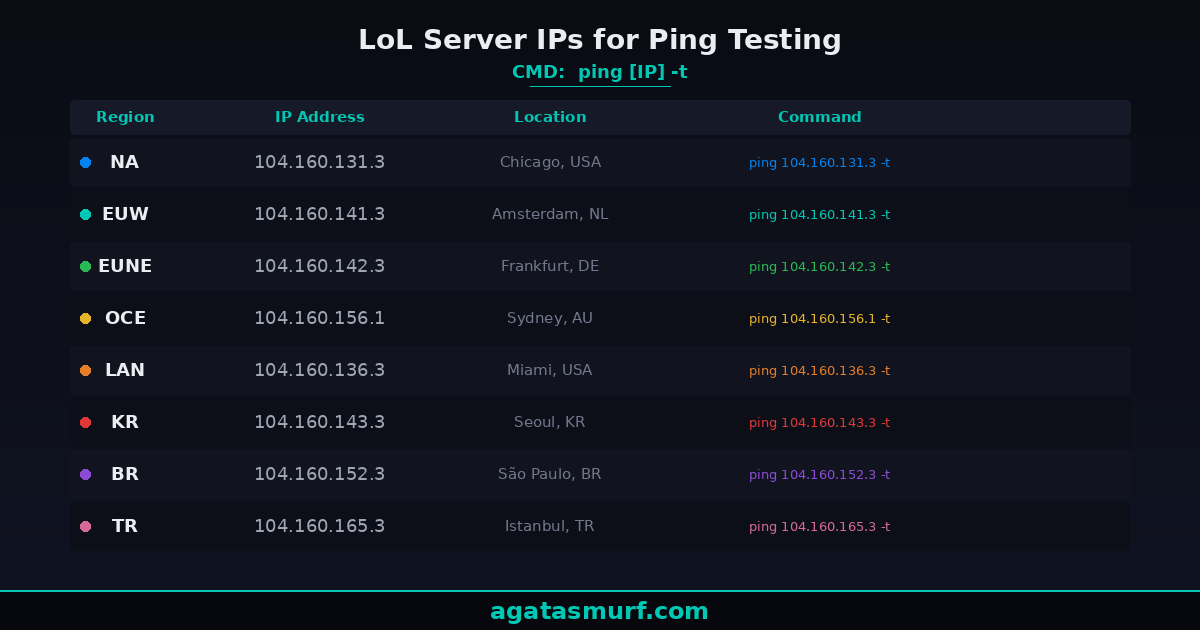
Riot doesn’t officially publish a neat IP list for players, but the community has kept track of them for years. They’ve occasionally rotated, but the ones below have stayed put for a good while now:
| Region | Server IP | Physical Location |
|---|---|---|
| NA (North America) | 104.160.131.3 | Chicago, USA |
| EUW (Europe West) | 104.160.141.3 | Amsterdam, Netherlands |
| EUNE (Europe Nordic & East) | 104.160.142.3 | Frankfurt, Germany |
| OCE (Oceania) | 104.160.156.1 | Sydney, Australia |
| LAN (Latin America North) | 104.160.136.3 | Miami, USA |
| KR (Korea) | 104.160.143.3 | Seoul, South Korea |
Clean CMD ping but garbage in-game? Your ISP is routing game traffic through a congested node somewhere. Tough to fix from your end. A traceroute helps figure out where exactly the slowdown lives. I cover that further down.
Korea has it stupid good for ping. Players near Seoul regularly see single-digit ms. Meanwhile, NA players on the west coast sit at 60 to 70ms because Riot put the servers in Chicago. Pure geography, nothing you can do about it.
Why Your LoL Ping Might Be High (Even With Fast Internet)
People always ask me: “I have 500 Mbps, why is my ping 120?” Because speed and latency have almost nothing to do with each other.
Your download speed? That’s just pipe width. Ping is travel time. Completely different numbers. Think of a six-lane highway with zero traffic on it, but the road takes three detours before it hits Riot’s datacenter. Wide road. Slow trip.
The most common reasons for high ping in League:
- Wi-Fi instead of Ethernet. Wireless slaps on anywhere from 5 to 50ms of extra latency. Signal strength, wall thickness, how many phones and tablets share the network, all of it matters. Easily the most common fix I see people miss on Reddit.
- Background apps eating bandwidth. Steam updates, Twitch streams, Discord screen sharing, Windows Updates, cloud syncs. All of these compete for your connection.
- Wrong server region. If you created your account on NA but you live in Europe, you’re sending packets across the Atlantic. That’s 80 to 150ms minimum.
- Bad ISP routing. Your internet provider picks the cheapest path, not the fastest. During peak hours (evenings, weekends), congestion makes it worse.
- VPN or proxy running. Every extra hop adds latency. If you forgot to disconnect your VPN before launching League, that’s probably your problem.
- Outdated network drivers. This is less common but real. Old drivers can cause packet handling issues that show up as ping spikes.
LoL Ping Test Showing Bad Numbers? 7 Fixes
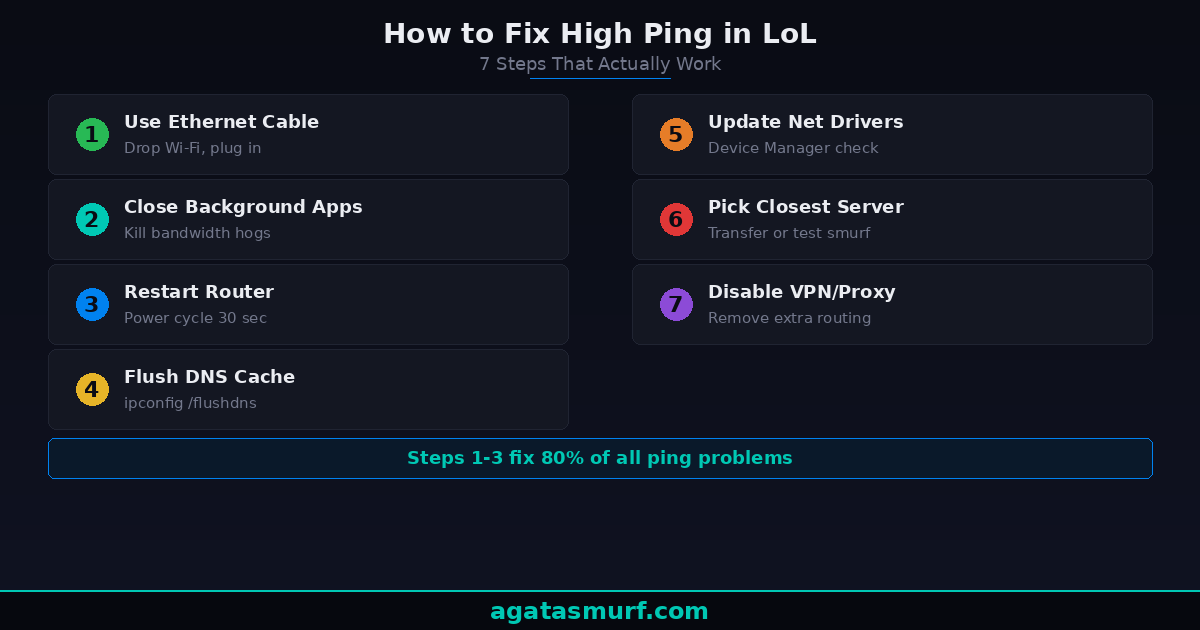
I’ve dealt with high ping on multiple accounts across EUW and NA. If you need to fix high ping in LoL, these are the things that actually worked for me. Sorted from “most likely to help” to “last resort.”
1. Switch to a Wired Ethernet Connection
This one fix solves the problem for probably 40% of players who complain about ping. A Cat5e or Cat6 cable costs under $10 and makes your connection drastically more stable. Wi-Fi is convenient, but it’s terrible for competitive gaming. Microwaves, walls, other devices on the network, even your neighbor’s router can interfere with the signal.
If running a cable to your router is not an option, A powerline adapter is the next best thing. Sends the signal through your home’s electrical wiring. Not as clean as a direct cable, but way more stable than Wi-Fi for gaming.
2. Close Background Applications
Open Task Manager (Ctrl+Shift+Esc), go to the Network column, and sort by bandwidth usage. Anything eating data that you do not need during your game session, kill it. Common offenders: Chrome with 40 tabs, Spotify streaming, OneDrive/Google Drive syncing, Windows Update, Discord video calls.
3. Restart Your Router and Modem
Sounds basic, I know. But routers get weird after running for weeks without a restart. Routing tables fill up with junk, the cache bloats, and your packets start taking weird detours. Unplug both the modem and router, wait 30 seconds, plug the modem back in first, wait for it to fully connect, then plug in the router. Run the LoL ping test again and compare.
4. Flush Your DNS Cache
Open Command Prompt as admin and run these commands one at a time:
ipconfig /flushdns
ipconfig /release
ipconfig /renew
Switch your DNS while you’re at it. Google DNS is 8.8.8.8 and 8.8.4.4. Cloudflare is 1.1.1.1 and 1.0.0.1. Won’t change your actual in-game ping, but the Riot client connects to login and patch servers faster on a good resolver. Takes 30 seconds to set up.
5. Update Network Drivers
Right-click Start, open Device Manager, expand Network Adapters, right-click your adapter, and select Update Driver. Let Windows search automatically. Nothing found? Check your motherboard manufacturer’s website. Old drivers can mess with how your adapter handles packets, and that shows up as random ping spikes mid-game.
6. Play on the Closest Server
Western Europe? EUW. Scandinavia or Eastern Europe? Try EUNE. Your ISP might route to Frankfurt better than to Amsterdam. Transfer costs 2,600 RP. Or just make a free account on the other region and test first.
7. Disable VPN and Proxy
Check your system tray for active VPNs. Go to Windows Settings, Network & Internet, VPN and make sure nothing is connected. Also check your browser proxy settings. Any extra routing layer between you and Riot’s servers adds latency.
Bonus: Riot’s Hextech Repair Tool
Most people don’t know this exists. Riot built a free diagnostic tool called Hextech Repair Tool. It scans your LoL install for corrupted files, broken configs, and network weirdness. Download it from Riot’s support site, run it, done. I’ve seen it fix ping spikes that nothing else caught. Especially after a big patch when game files get half-corrupted mid-download.
Playing on a Phone Hotspot?
Expect 80 to 150ms. Minimum. Cellular adds tons of overhead and your ping will spike every time someone calls you or your phone jumps towers. Saw a post on r/leagueoflegends where a guy had 400ms spikes every few minutes. Couldn’t figure it out for weeks. His phone was auto-switching between 4G and 5G mid-game. Lock your phone to one band and don’t use hotspot for ranked. That’s a backup plan, not a real setup.
Advanced Troubleshooting: Traceroute
If the basic fixes did not help, run a traceroute to see exactly where the delay is happening. In Command Prompt:
tracert 104.160.141.3
You’ll see every network hop between your PC and the Riot server. Each hop has its own latency number. First three hops? Your local network. High ms there means the problem is in your house. Big jump at hop 5 or 6? That’s your ISP choking. Last few hops are Riot’s network, and if those are slow, tough luck. Server-side, nothing you can fix.
Got the traceroute data showing your ISP is the bottleneck? Call them. Don’t bother with basic support, ask for the network team. Give them the IP, show the traceroute, and ask why their routing to Riot’s servers looks so bad. Some ISPs will actually fix it. Most will shrug.
LoL Ping Test vs. In-Game Ping: Why Numbers Differ
The LoL ping test on this page sends HTTP requests. The actual game runs on UDP through Riot’s own networking stack. Different protocols, different routes, different overhead. So the numbers won’t match perfectly.
Your in-game ping usually reads 5 to 15ms lower than the web test. Web tool says 45ms? Probably 30 to 40 in game. Shows 150? Don’t queue.
Want actual precision? Skip web tools entirely. The CMD method with ping [server IP] -t gets much closer to real game numbers because ICMP travels a similar route to game traffic.
Does Your LoL Ping Test Score Affect Ranked?
100%. But maybe not the way you think. A stable ping matters way more than a low one. Most people ask “what’s a good ping for LoL” and expect a single number, but the real answer depends on what you play. Farming on Nasus at 80ms on Summoner’s Rift? Fine. Trying to Insec on Lee at 80ms? Good luck.
Ping in ranked hits different from normals because every trade, every CS, every teamfight matters. I played on EUW at 60ms for months and it felt smooth. Then I played on a friend’s account with 30ms but constant spikes up to 200, and I legit wanted to throw my keyboard. Stable beats low every time.
But there is a real mechanical disadvantage above certain thresholds. At 100ms+, you lose the ability to react to point-blank abilities. Try dodging a Riven flash-engage on 120ms. You physically cannot process the visual, press Flash, and have it register before her full combo lands. At 30ms, you at least have a shot.
Pro players compete on LAN setups with sub-10ms ping for exactly this reason. Korean solo queue is famous for its mechanical skill partially because the average ping on KR is below 10ms. Players literally develop faster reaction patterns because the game responds instantly. Run a LoL ping test on the KR server from Europe and you’ll see why transferring there is pointless.
Got a main stuck on a high-ping region? Before you spend 2,600 RP on a transfer, grab a smurf account on the closer server and test for a few days. Cheaper than transferring and finding out it’s still bad.
LoL Ping Test Shows High on Ethernet?
Sometimes even a wired connection acts weird in LoL and only in LoL. The game disconnects or shows high ping while everything else works fine. Nine times out of ten, Riot Vanguard is fighting with your network adapter, or a firewall rule is blocking League’s traffic.
We wrote a whole guide on League of Legends not working on Ethernet for that exact scenario. Check it out if wired is giving you grief. For everyone else: cable in, Wi-Fi off, 80% of ping problems gone.
How Latency Affects Your MMR Over Time
Your MMR doesn’t track ping. It tracks wins and losses. Period. But bad ping makes you play worse. You lose more. Your MMR tanks. Indirect? Sure. Real? Absolutely.
Been on a losing streak with trash ping? Check your connection before you blame your champ pool. I’ve watched people tilt for weeks straight before they figured out their ISP changed routing and their ping quietly jumped 40ms.
Ping Test vs. FPS Drops vs. Packet Loss
People blame ping for stuff that has nothing to do with it. I’ve done it too. Before you tilt about your connection, check which of these actually matches your problem:
| Symptom | Likely Cause | Actual Fix |
|---|---|---|
| Screen stuttering/freezing | Low FPS (GPU/CPU issue) | Lower graphics settings, update GPU drivers |
| Champion teleports to a previous position | Packet loss | Switch to wired, contact ISP |
| Game freezes then fast-forwards | Packet loss or ping spike | Check background apps, restart router |
| Abilities cast late | Genuine high ping | Use fixes listed above |
| Game crashes or won’t launch | Client/Vanguard issue | Check our guide on LoL not opening |
Quick way to tell them apart: if your screen stutters but your ping number looks fine, it’s FPS (your hardware). If your ping spikes but frames stay smooth, it’s your network. If your champion teleports backward, that’s packet loss, and usually your ISP is to blame. Hit Ctrl+F and watch both numbers during a fight to narrow it down.
Frequently Asked Questions
What is a good ping for League of Legends?
Below 50ms and you’re good. Below 30ms is the sweet spot for ranked. Between 30 and 60 feels smooth for most people. Once you pass 100ms, you start missing skillshots and losing trades you should win.
How do I check my ping in LoL without starting a game?
Run the ping test tool on agatasmurf.com. Select your region, click the button, and you’ll see your approximate latency in about 10 seconds. Or open Command Prompt and type ping 104.160.131.3 -t (for NA) or swap in the IP for your region.
How do I show ping in League of Legends during a match?
Press Ctrl+F during any match and your ping will appear in the top-right corner of the screen alongside your FPS. If the shortcut does not work, go to Settings, Hotkeys, Display, and rebind Toggle FPS Display to Ctrl+F or any key you prefer.
Why is my LoL ping high but my internet seems fine?
Speed and ping are completely separate. 500 Mbps just means the pipe is wide. Ping is the travel time per packet. The usual suspects for high ping on fast internet: Wi-Fi interference, your ISP picking a bad route, background apps eating bandwidth, a forgotten VPN, or being on a server that’s too far from your location.
What are the Riot server IP addresses for ping testing?
The most commonly used Riot server IPs for ping tests are: NA is 104.160.131.3, EUW is 104.160.141.3, EUNE is 104.160.142.3, OCE is 104.160.156.1, LAN is 104.160.136.3, and KR is 104.160.143.3. Open Command Prompt and type ping followed by the IP and -t to run a continuous test.
Does ping affect ranked performance in League of Legends?
Absolutely. The gap between 20ms and 80ms is about 60 milliseconds of raw input delay, enough to decide whether you flash a Malphite ult or eat it. But stability beats a low number. A locked 60ms is way more playable than a connection bouncing between 20 and 200 every teamfight.
Bookmark this LoL ping test and run it before every ranked session. Takes 10 seconds and saves you from queueing into a game you were never going to win on 150ms.
Last updated: April 2026.