


 through our G2G profile

 LoL Accounts
 Valorant
 WoW accounts
Look, when LoL ethernet is not working, it almost always lands on one of three things. A busted driver. A DNS that can’t resolve Riot’s hostnames. Or a firewall rule that somehow only trusts your Wi-Fi adapter and pretends your ethernet does not exist. I’ve hit this on two different builds in the past year. Both times the fix lived inside adapter settings Windows never pings you about.
Here’s the weird part. Chrome loads. Discord chats. Spotify keeps playing. But the Riot Client? Dead. Either stuck on login or throwing “Attempting to Reconnect” 15 seconds into champ select. So it’s not really your internet. It’s your ethernet adapter doing something specific that breaks League’s traffic pattern.
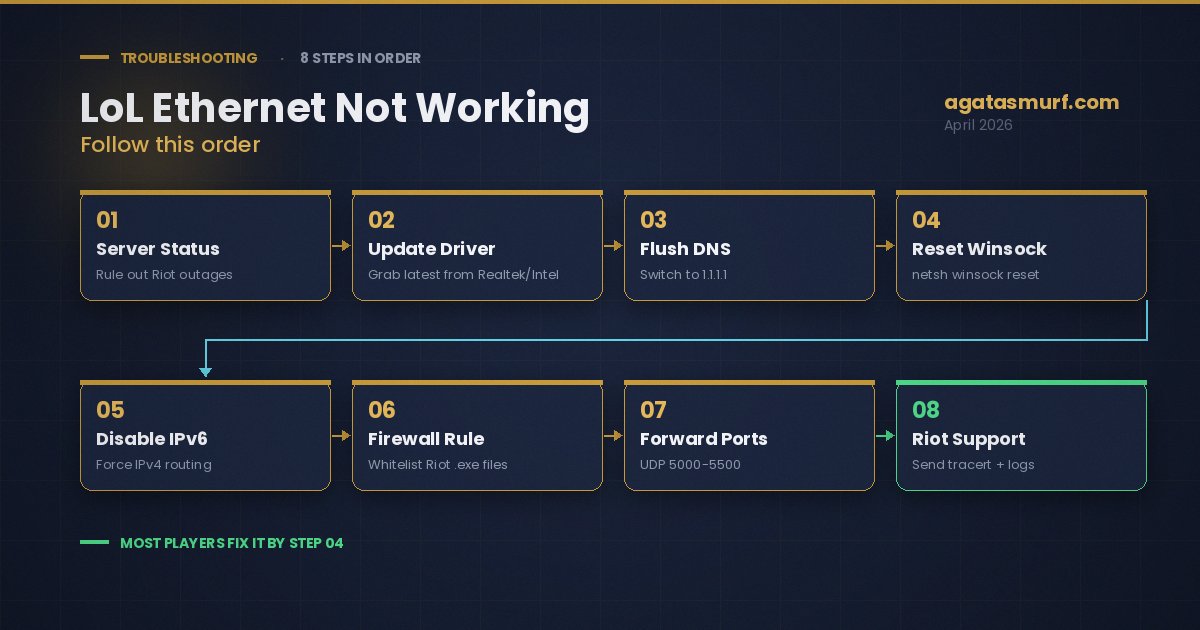
Ten fixes below. Easy stuff first, weird router menu stuff later. Most players are back online before they hit fix number five.
Quick Reference: All 10 Fixes at a Glance
| Fix | Time | Difficulty | Works For |
|---|---|---|---|
| Check Riot Server Status | 30 sec | Easy | Server-side outages |
| Update ethernet drivers | 2 min | Easy | Outdated adapter software |
| Flush DNS + switch DNS | 2 min | Easy | DNS resolver failures |
| Reset Winsock | 1 min | Easy | Corrupted network stack |
| Disable IPv6 | 1 min | Easy | IPv6 routing conflicts |
| Allow League through firewall | 3 min | Medium | Blocked outgoing connections |
| Forward League ports | 10 min | Medium | Closed router ports |
| Disable P2P Windows updates | 1 min | Easy | Bandwidth hijacking |
| Disable Energy Efficient Ethernet | 2 min | Medium | Adapter sleep/power saving |
| Run Riot Client as admin | 30 sec | Easy | Permission-related blocks |
Common Error Messages When LoL Ethernet Is Not Working
Match your exact symptom first. The fix depends on the flavor of broken.
| Error Message | What It Means | Jump to Fix |
|---|---|---|
| “Unable to connect to server” | Firewall or DNS blocking Riot auth | Fix 3 + Fix 6 |
| “An unexpected error has occurred while logging in” | SSL/TLS or adapter config issue | Fix 2 + Fix 4 |
| “No Internet Found” (Riot Client) | Adapter not properly detected | Fix 2 + Fix 4 |
| “Attempting to Reconnect” (in-game) | Packet loss or adapter sleeping | Fix 9 + cable check |
| Stuck on launcher/patcher | DNS can’t resolve Riot aliases | Fix 3 |
| Login works, game won’t load | Router blocking UDP 5000-5500 | Fix 7 |
Video Walkthrough
If reading through 10 fixes feels like too much work, this video from Your Fix Guide runs through the “No Internet Found” Riot Client error. That’s the most common face of the LoL ethernet not working mess right now. Pair it with the steps below.
Why LoL Ethernet Is Not Working (Common Causes)
Three places things can break. Your end, your ISP’s routing, or Riot’s servers. When only ethernet is messed up and Wi-Fi still works, it’s basically always local. Same internet feeds both interfaces. So the break has to live in how your wired adapter is handling League’s traffic.
From hours of this nonsense across different setups (and more Discord tech support sessions with friends than I can count), here’s what actually causes it:
| Cause | What Happens | How Common |
|---|---|---|
| Outdated ethernet driver | Login fails, random disconnects mid-game | Very common |
| DNS resolver conflict | Riot Client can’t patch or connect | Common |
| Firewall blocking League | “Unable to connect to server” error | Common |
| IPv6 routing issues | Intermittent disconnects, packet loss | Moderate |
| Energy Efficient Ethernet enabled | Adapter sleeps, causes micro-disconnects | Moderate (Intel NICs) |
| Link speed stuck at 100 Mbps | Works for browsing, fails under load | Moderate |
| Corrupted Winsock | All online games have issues on ethernet | Less common |
| Closed ports on router | Login works but game won’t load | Less common |
| Bad ethernet cable or RJ45 pins | Intermittent lag spikes, packet loss | Rare but sneaky |
| USB-to-Ethernet adapter driver | League fails, onboard NIC works fine | Rare |
Fix 1: Check Riot Server Status First
Do this before you touch anything else. The LoL ethernet not working error often turns out to be a Riot-side outage, not your PC at all. I wasted 40 minutes one evening poking at Device Manager before realizing EUW had been down the whole time. Felt like an idiot.
Hit the Riot connection support page or peek at @RiotSupport on X. If something’s up on their side, you wait. No fix on your end matters. Riot runs separate status pages per region so NA being fine doesn’t mean EUNE is. And sometimes it’s not an outage but scheduled downtime, so it’s worth peeking at whether League of Legends is under maintenance right now too.
All clear on Riot’s side? Keep reading.
Fix 2: Update Your Ethernet Adapter Driver
Single biggest culprit behind LoL ethernet not working errors. Windows Update treats network drivers like an afterthought. Meanwhile Realtek and Intel push fixes every couple months that quietly patch gaming-specific bugs, and you’d never know.
- Hit the Windows key, type
Device Manager, Enter. - Expand Network adapters.
- Right-click your ethernet card. It’ll say something like “Realtek PCIe GbE Family Controller” or “Intel Ethernet Controller I225-V.”
- Click Update driver, then Search automatically for drivers.
- Reboot even if Windows swears the driver is current.
If Windows says there’s nothing newer, don’t trust it. Go to the manufacturer site directly. Realtek has a support page. Intel has a Network Adapter Driver download. Killer Network (now Intel-owned) ships its own suite. The manufacturer version is almost always newer than what Windows hands you, sometimes by half a year.
Special shoutout to the Intel I225-V. That chip sits on a ton of modern Asus, MSI, and Gigabyte boards, and the early driver revisions were a disaster. Random disconnects in League, Valorant, anything with lots of UDP. If your LoL ethernet not working issue started right after a motherboard upgrade, this chip is usually the reason. Intel fixed most of it in later releases but you have to grab the update manually. Mine stopped dropping packets the moment I rolled off the stock Windows driver.
Fix 3: Flush DNS and Switch to a Public DNS Server
If LoL ethernet not working started after a router reboot or ISP maintenance, DNS is suspect number one. Riot’s client uses server aliases. Fine concept. Except some ISP DNS servers resolve those aliases slowly, or weirdly, or just fail outright under load. You end up watching the Riot Client spin forever with no error.
Kill the old cache first. Command Prompt as admin:
ipconfig /flushdns
Now move off your ISP’s DNS. Google or Cloudflare, either works.
- Windows + R, type
ncpa.cpl, Enter. - Right-click the Ethernet adapter, Properties.
- Select Internet Protocol Version 4 (TCP/IPv4), click Properties.
- Choose Use the following DNS server addresses.
- Preferred
8.8.8.8, alternate8.8.4.4for Google. Or1.1.1.1and1.0.0.1for Cloudflare. - OK out, close, reboot.
Cloudflare tends to be faster in resolution benchmarks. Google has been rock solid for over a decade. No wrong answer, just pick one. Either of them will blow the doors off most ISP defaults, especially if your ISP is Comcast, Spectrum, or anything from Eastern Europe.
Sanity check after you swap: run nslookup leagueoflegends.com in cmd. You should get an IP back within half a second. If it stalls, your adapter didn’t pick up the new DNS. Reboot again or repeat the steps.
Fix 4: Reset Winsock When LoL Ethernet Is Not Working
Winsock is the thing in Windows that glues apps to the network layer. When it gets corrupted, browsing keeps working but specific apps like League just flat refuse. Seen it a dozen times.
Command Prompt as admin. Three commands:
netsh winsock reset
netsh int ip reset
ipconfig /flushdns
Reboot. That blows the Windows networking stack back to factory. So if you set custom DNS in Fix 3, you’ll need to redo that after the restart. Fair trade.
My buddy hit a situation where League said “unable to connect to server” only on ethernet. Wi-Fi fine. Chrome fine. Steam fine. Discord fine. Winsock reset, one reboot, done. Whatever got corrupted had been sitting there for weeks throwing no other symptom.
Fix 5: Disable IPv6 on Your Ethernet Adapter
A subtle cause of LoL ethernet not working: IPv6 routing. League only uses IPv4 to hit Riot servers. So IPv6 on your end is doing nothing useful for the game. But some older routers half-support IPv6 and route it badly, which throws packet loss into your League session for no obvious reason.
- Windows + R,
ncpa.cpl, Enter. - Right-click Ethernet, Properties.
- Uncheck Internet Protocol Version 6 (TCP/IPv6).
- OK.
No reboot. Launch League. If it’s smooth now, leave IPv6 off. If nothing changed, flip the checkbox back on so you don’t lose IPv6 access for other things (some mesh Wi-Fi setups need it).
Fix 6: Firewall Fix for LoL Ethernet Not Working Issues
Windows Firewall keeps separate rules per network profile. Private vs Public. So if you installed League while your Wi-Fi was active, the firewall might’ve only okayed it on that profile, and your ethernet sits on a different one. Sounds dumb but it happens constantly.
- Windows key, type
Windows Defender Firewall. - Click Allow an app or feature through Windows Defender Firewall.
- Click Change settings (admin required).
- Scroll for League of Legends and RiotClientServices.
- Check both the Private and Public boxes for each.
- Not in the list? Click Allow another app and point it at the League folder.
The four exe files that need through:
LeagueClient.exeLeague of Legends.exeRiotClientServices.exeRiotClientCrashHandler.exe
Third-party antivirus is its own mess. Kaspersky, Norton, Bitdefender, ESET, they all ship with their own firewall that overrules Windows Defender. Kill your antivirus for two minutes, test League. If that did the trick, go add the four exe files to your antivirus exception list before turning it back on.
Stuck at the login screen instead of mid-game? That’s a slightly different problem. Our write-up on fixing League of Legends login problems covers the login-specific fixes in more detail.
Fix 7: Forward League of Legends Ports on Your Router
Got LoL ethernet not working specifically on the loading screen? That’s your router blocking UDP. Some cheap ISP routers ship with UDP traffic restricted by default. That’s the protocol League uses for actual gameplay. Result: login works fine, champ select loads, then you hit the Loading Screen and never come out.
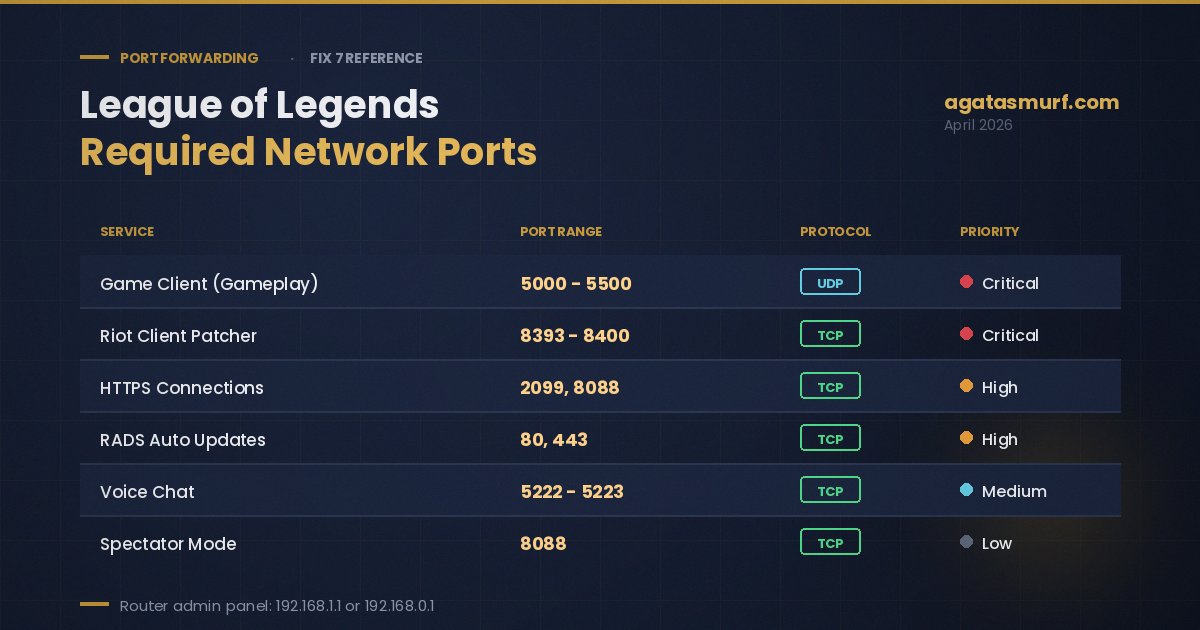
Ports you need open:
| Service | Ports | Protocol |
|---|---|---|
| Game Client | 5000-5500 | UDP |
| Riot Client (Patcher) | 8393-8400 | TCP |
| HTTPS Connections | 2099, 8088 | TCP |
| RADS (Updates) | 80, 443 | TCP |
| Voice Chat | 5222-5223 | TCP |
Log into your router. Usually 192.168.1.1 or 192.168.0.1 in any browser. Username and password should be on a sticker on the back of the box. Find the Port Forwarding section (sometimes called Virtual Servers or NAT). Create an entry for each port range above. You’ll need your PC’s local IP, get that by running ipconfig and copying the IPv4 Address under your Ethernet adapter.
Warning: Port Triggering is NOT Port Forwarding. Looks almost identical in router menus, does a different thing, won’t work here. Make sure you’re in the Port Forwarding section specifically.
And then there’s Double NAT. If your ISP handed you a combo box that acts as both modem and router, and you plugged your own router behind it, you’re now double-natted. Which means port forwarding on just one of the two devices does basically nothing. Two ways out. Throw the ISP box into bridge mode so it only modems and your router does the NAT-ing. Or forward the ports on both devices, the ISP modem and your own router. Bridge mode is way cleaner if your ISP lets you do it.
Fix 8: Disable Windows Peer-to-Peer Updates
Okay this one always makes people mad when they find out. Windows 10 and 11 ship with peer-to-peer update sharing on by default. So while you’re trying to one-shot someone in lane, your PC is seeding Windows update files to a stranger in some random country. Eats upload bandwidth. Spikes your ping. You blame the enemy Zed when really your own OS is betraying you.
- Settings (Windows + I).
- Windows Update (Windows 11) or Update & Security (Windows 10).
- Advanced options.
- Delivery Optimization.
- Toggle Allow downloads from other PCs off.
Five seconds of effort. Frees up upload your games actually want. If you’re squeezing performance, our best LoL settings guide has more in-game knobs that reduce how much bandwidth League needs in the first place.
Fix 9: Disable Energy Efficient Ethernet in Adapter Settings
This is the Reddit darling fix for LoL ethernet not working problems. EEE (Energy Efficient Ethernet) lets your network card nap during idle periods to save maybe one watt of power. Cute feature for an office PC. Terrible for gaming.
Why? League’s traffic is bursty. Short packets, small pauses, more packets. Your adapter’s EEE logic sees those pauses and goes “oh, idle, time for a power nap.” It dozes for a few milliseconds, packets drop into the void, and your Ezreal flashes into a turret because the server didn’t get the input.
- Device Manager.
- Expand Network adapters.
- Right-click your ethernet card, Properties.
- Advanced tab.
- Find Energy Efficient Ethernet. Set to Disabled.
Bonus moves in the same Advanced tab:
- Flow Control: off. Causes random micro-stutters in gaming.
- Interrupt Moderation: off. Lower latency at the cost of maybe 1% more CPU use.
- Large Send Offload v2 (IPv4): off. Can bundle packets in ways that delay them.
- Green Ethernet: off. Same idea as EEE, Realtek just named it something else.
Your adapter won’t have every option. Depends on the chipset. But if you see EEE or Green Ethernet, kill them. Tons of players on the r/LeagueOfLegends tech threads report that single setting fixes weeks of disconnects.
Fix 10: Run Riot Client as Administrator
Permissions thing. Riot Client sometimes can’t poke at certain networking features without admin rights, and when that happens on ethernet specifically (different adapter = different permission context in Windows), the client just silently fails.
- Fully close League and the Riot Client. Check Task Manager to kill leftover processes.
- Right-click the Riot Client shortcut.
- Run as administrator.
- If that fixed things, make it permanent: right-click the shortcut, Properties, Compatibility tab, tick Run this program as an administrator.
Important gotcha. If you run the Riot Client as admin, also run League of Legends.exe as admin. Mismatched permissions between the launcher and the game cause their own weird bugs. Riot mentions this in small print in their support docs but most players miss it.
Still getting error codes on top of the ethernet issue? Some of those are Vanguard errors, not network errors. VAN codes specifically point to Riot’s anti-cheat rather than your connection. Worth a look if you keep seeing VAN numbers.
Check Your Ethernet Link Speed (Hidden Gotcha)
Not in the top 10 because it’s niche, but when it hits you it’s maddening. Your ethernet might be silently negotiating at 100 Mbps instead of 1 Gbps. Web pages still load. Speedtest might even show your full plan. But the second your PC does anything hefty in the background, gaming traffic gets squeezed.
Quick check:
- Windows + R,
ncpa.cpl, Enter. - Double-click your Ethernet connection.
- Look at Speed. On a gigabit router with a decent cable, should read 1.0 Gbps.
If it says 100 Mbps, there’s a problem. Three suspects:
- Cable: old Cat5 (not Cat5e) literally cannot do gigabit. Swap for a Cat6. Five bucks on Amazon.
- Port: sometimes a specific router or PC port has damaged internal pins. Try a different LAN port on the router, or if your motherboard has two NICs, try the other one.
- Auto-negotiation failing: open adapter Properties, Advanced tab, find Speed & Duplex. Force 1.0 Gbps Full Duplex.
Happened to me last winter. League was perfect for exactly ten minutes every session, then the disconnects started. Turned out my ethernet was running at 100 Mbps because a kink in the cable had damaged one twisted pair. One new cable, problem gone, went back to grinding ranked on my EUW smurf like nothing happened. Took me a week of driver rollbacks and firewall edits to even look at the cable. Classic.
USB Adapter Fix for LoL Ethernet Not Working on Laptops
Got a laptop without a built-in LAN port? Or a slim desktop like a NUC? You’re probably on a USB dongle for ethernet. That little adapter has its own driver separate from everything else on your PC. And when that driver goes bad, you get LoL ethernet not working errors while Chrome runs perfectly fine. Classic mismatch.
Stuff to try:
- Full driver reinstall. Device Manager, right-click the USB adapter, Uninstall device, yank the dongle, plug it back in. Windows grabs a fresh copy.
- Different USB port. Old USB 2.0 ports choke on gigabit traffic. Use USB 3.0 (blue) or 3.1/3.2 (teal or red) instead.
- Kill power management. Device Manager, right-click the adapter, Power Management tab, uncheck “Allow the computer to turn off this device to save power.” Otherwise Windows keeps putting it to sleep during League queue times.
- Test the onboard port if you have one. If League works on the motherboard ethernet but not the USB dongle, that dongle is the problem. Period.
Physical Checks Most Players Skip on Their Ethernet Setup
Before closing the software rabbit hole, do the dumb obvious stuff. I’ve watched Diamond players burn two hours in registry editor when the real issue was a 3-dollar cable with a snapped tab.
Go through this:
- Swap the ethernet cable. Cat5e or Cat6, ideally under 10 feet. Not the dusty Cat5 you pulled out of a 2010 router box.
- Plug straight into the router. No switches, no powerline adapters, no wall jacks between. Each middleman is one more thing that can quietly fail.
- Wiggle both RJ45 ends. If the plastic retention tab is broken and the plug doesn’t click in, trash that cable. A loose ethernet plug will drop packets silently.
- Try a different LAN port on the router. Router ports die. Rare but happens.
- Power cycle the router. Not just reboot. Unplug, count to 30, plug back in. Clears the DNS cache, wipes its ARP table, forces a fresh handshake with your ISP.
If all 10 fixes plus the physical checks do nothing, you’re looking at something deeper. ISP routing problems, a motherboard NIC slowly dying, or a router firmware bug on your specific hardware. At that point it’s Riot Support time.
Riot Support: Last Resort When LoL Ethernet Is Not Working
If all 10 fixes plus the cable swap did nothing and your LoL ethernet not working problem is still sitting there, it’s Riot ticket time. Submit with actual data so they don’t waste two rounds of “have you tried restarting” replies. Include:
- Region and server (NA, EUW, EUNE, KR, etc.)
- Your Riot username. Never the password.
- Exactly where the error hits. Login screen, champ select, loading, or mid-game.
- Every fix you already tried.
- A traceroute. Open Command Prompt, run
tracert 104.160.131.3for NA ortracert 104.160.141.3for EUW. Paste the whole output. - Riot Client logs. Hit the question mark icon in the client, grab the log bundle.
Do that and you skip straight to a real tech response. Riot support is genuinely useful once they have the data, it’s just that 80% of tickets arrive with zero info.
While you wait on Riot to look at your case, some people like to keep grinding on a different account so the day isn’t a total loss. We carry LoL smurf accounts across every server with fast delivery if that’s the move for you.
Frequently Asked Questions
Why does LoL break on ethernet but run fine on Wi-Fi?
Nine times out of ten, a stale ethernet driver or a firewall rule that only trusts your Wi-Fi adapter. Update the driver from your motherboard maker’s site, re-add League to Windows Firewall, swap DNS to 1.1.1.1 and you’re usually back in.
What ports does League of Legends need open?
UDP 5000 to 5500 for gameplay. TCP 8393 to 8400 for the Riot Client patcher. TCP 2099 and 8088 for HTTPS. TCP 80 and 443 for updates. TCP 5222 and 5223 for voice. Forward them in your router admin panel if the game keeps stalling on loading screen.
How do I stop LoL from disconnecting every few minutes on ethernet?
Grab the newest driver from Realtek or Intel. Flush DNS with ipconfig /flushdns. Run netsh winsock reset as admin. Reboot. Still dropping? Turn off Energy Efficient Ethernet in your adapter’s Advanced tab, that one fixes a ton of Intel I225-V owners.
Does turning off IPv6 help with LoL ethernet problems?
Often yes. League only talks IPv4 to Riot servers, and some routers choke on IPv6 routing under load. Uncheck IPv6 in your ethernet adapter properties, launch the game, see what happens. Takes 30 seconds to test and you can flip it back if it did nothing.
Can a cheap ethernet cable cause LoL packet loss?
For sure. Bent pins, a cracked RJ45 tab, or some sketchy Cat5 from a decade ago will drop packets under gaming load even when it still browses fine. Swap for a short Cat6, plug it straight into the router, and check both ends click in solid.
Google DNS or Cloudflare DNS for League?
Cloudflare (1.1.1.1 and 1.0.0.1) resolves faster in most tests. Google (8.8.8.8 and 8.8.4.4) has slightly better uptime across random ISPs. Either one beats whatever your ISP set by default. Pick one, flush DNS, move on.
Why does my ethernet show connected but League cannot reach the server?
Usually DNS, or your link negotiated at 100 Mbps instead of gigabit. Check adapter Speed in ncpa.cpl properties. If it says 100 Mbps, cable or port is suspect. Also swap DNS to 1.1.1.1, that kills most connection weirdness in one shot.
Last updated: April 2026
