


 through our G2G profile

 LoL Accounts
 Valorant
 WoW accounts
So you launched Marvel Rivals and got hit with error code 211 instead of a match. Not great. This has been going on since December 2024 when the game dropped and honestly it has not gotten much better in 2026. Your login just dies with no explanation. Nine times out of ten it is a Steam thing, but some PS5 and Xbox players have gotten it too.
I spent a while going through Reddit, Discord, and Steam threads collecting what people tried and what worked. If “failed to connect to Steam” with error code 211 is what you are looking at right now, this is the page you need.
What Does Error Code 211 Mean in Marvel Rivals?
You click play, Marvel Rivals tries to check your account through Steam (or Epic, PSN, Xbox Live), and somewhere in that process it fails. That is error code 211. You get stuck staring at the login screen.
The worst part? The popup tells you absolutely nothing about why. No details, no direction. NetEase said on the official Marvel Rivals website that they know about errors like this. But the trigger is different for every person, so there is no single fix from their side yet.
Basically your machine and their servers tried to shake hands and something got between them.
Why Error Code 211 Happens in Marvel Rivals
Hard to say exactly why you got it because there are like seven different things that can cause it. These are the ones that come up over and over in player reports:
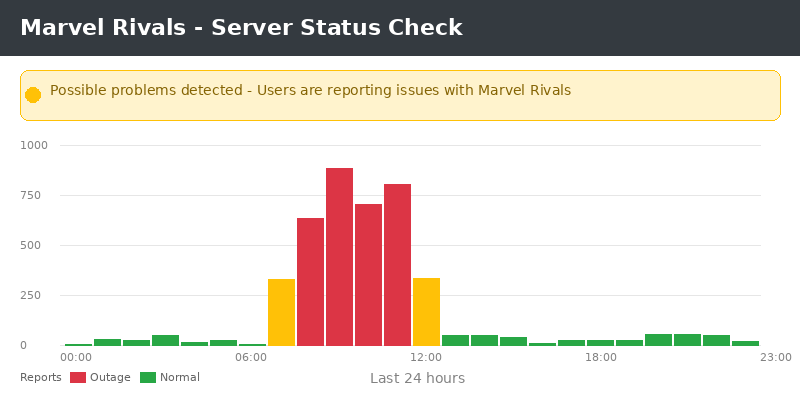
Server downtime is the big one. NetEase pulls the game offline for patches on a regular basis. Season 6 dropped in January 2026, servers went dark for 2 hours, and anyone trying to log in during that got the 211 error. Unannounced outages happen too, mostly right after a patch goes live.
Wi-Fi dropping out is another common trigger. Does not even have to be a full disconnect. Half a second of packet loss during the auth check is enough. If you are on wireless and the signal is shaky, this could be your problem.
Firewall and antivirus are sneaky ones. Norton, Bitdefender, even Windows Defender does this. Your security software looks at Marvel Rivals trying to reach a server somewhere, doesn’t recognize it, and just kills the connection. No popup, no alert, nothing. You’re sitting there restarting the game over and over and the whole time your antivirus is quietly blocking it in the background.
Server blockers and VPNs cause trouble too. People install region blockers for Overwatch or other shooters, forget about them, and then wonder why Marvel Rivals won’t connect. Turning off a server blocker was the fix for a lot of people on the Steam forums.
Bad game files are worth mentioning. If an update got interrupted mid-download, or a file on your drive went bad, the login process might choke on it.
And sometimes Steam just does not update the game when a new version drops. Your client is on version A, the server wants version B, and instead of a helpful “update required” message, you get error 211.
And then there is your system clock. Yeah, really. Auth tokens have timestamps baked into them. If your PC clock drifted by 10 minutes, the server looks at the token and thinks it is old. Sounds ridiculous but people have fixed error code 211 just by syncing their clock.
How to Fix Error Code 211 in Marvel Rivals
Start from the top. Most people get sorted in the first 2-3 steps. Video version below if you want to follow along:
1. Kill Steam and Restart It (Fixes Error Code 211 Most Often)
The X button on Steam doesn’t actually close it half the time. It just sits in your system tray doing nothing useful. Ctrl + Shift + Esc to open Task Manager, scroll through the list, and if you see anything that says Steam, right-click it and end it. Do that for every single one. Now reopen Steam from your desktop and launch Marvel Rivals.
What’s happening here: Steam holds on to old auth tokens sometimes. Killing the process forces it to grab a fresh one. If the token was stale or corrupted, that was your whole problem.
You can also try logging out of Steam entirely before relaunching. Some people had to do that after changing their password.
Works for roughly 60-70% of people, based on what the threads say.
2. Check Marvel Rivals Server Status Before Anything Else
Before you tear your settings apart, make sure NetEase’s servers are actually running. Three spots to check:
- Marvel Rivals on X (maintenance schedules go there first)
- The game’s Discord (announcements channel updates live)
- Downdetector (shows real-time player reports)
If servers are offline, you wait. Not much else you can do. Maintenance windows are usually about 2 hours. Our Marvel Rivals server status guide goes deeper on this.
3. Router Restart + Ethernet Cable
Yank the power cable from your router. Leave it off for 30 seconds, not less. If your modem is a separate box, pull that one too. When you plug them back in, do the modem first, wait for the lights to settle down, then the router. Sounds basic but your router holds onto all kinds of garbage in memory and sometimes it just needs a hard reset.
On Wi-Fi? Try wired. I get it, running a cable across the house is annoying, but Wi-Fi drops packets way more than people think. Especially if someone is watching YouTube in the other room or your neighbor’s router is on the same channel. Some dude on Reddit said he spent three days troubleshooting this error and literally all he had to do was plug in an Ethernet cable.
4. Disable Your VPN or Server Blocker
Running a VPN? Shut it down and try again. Same deal with server blocking tools. Even if you installed one for a different game months ago, it could be messing with Marvel Rivals behind the scenes. A lot of people don’t realize these tools run at startup and stay active even when you’re not playing the game they were set up for.
Use a VPN for work? Fine, but at least connect to a server in your own country before opening the game. Routing your traffic through Japan or Brazil when you live in Europe is asking for connection errors.
5. Whitelist Marvel Rivals in Firewall Settings
Dig into your firewall or antivirus settings. There should be an “exclusions” or “allowed apps” list somewhere. Put Steam.exe and MarvelRivals_Launcher.exe on it.
Windows Defender? Open Start, search for “Allow an app through Windows Firewall” and click it. Scroll through until you find Steam and Marvel Rivals. Both need the private and public checkboxes ticked. If they are not even on the list, there is an “Allow another app” button at the bottom where you can browse to the .exe yourself.
6. Flush DNS to Fix Marvel Rivals Connection Problems
DNS records on your PC can go stale. Clearing them out takes 30 seconds:
- Open Start, type cmd
- When Command Prompt pops up, right-click it, run as admin (important)
- Type in
ipconfig /flushdns, hit Enter - Now type
netsh winsock reset, hit Enter again - Reboot your PC
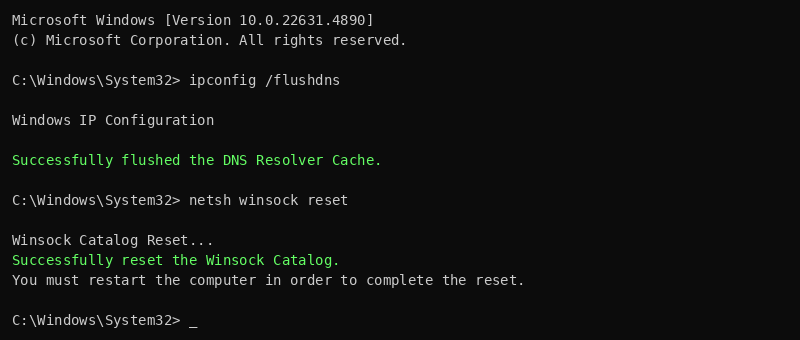
The winsock reset is the real MVP here. It wipes your entire network socket config and rebuilds it. A bunch of people who could not shake the 211 error with any other fix said this one finally worked.
7. Switch DNS to Google or Cloudflare
ISP default DNS can be slow or just bad. So swap it out:
- Google DNS: 8.8.8.8 / 8.8.4.4
- Cloudflare DNS: 1.1.1.1 / 1.0.0.1
How to change it: Settings > Network & Internet, pick your connection, look for DNS server assignment, click Edit. Throw in the numbers from above and reboot.
8. Verify Marvel Rivals Game Files
Corrupted update? If so, Steam can find and replace broken files:
- Open Steam library
- Right-click Marvel Rivals > Properties
- Installed Files tab
- “Verify integrity of game files”
Takes a few minutes. Steam is basically diffing your local files against whatever version is current on their servers and redownloading anything that looks off. Sometimes you will see it say “1 file failed validation” at the end. That is actually what you want to see because it means something was wrong and Steam already replaced it.
9. Sync Your System Clock
Yeah, your PC clock. If it is off by even a couple minutes the auth token timestamps don’t line up and the server just rejects you. Dumb but real.
Settings > Time & Language > Date & Time. Make sure “Set time automatically” is on. Click “Sync now” while you’re there.
10. Bypass Steam by Using Epic Games Store
Error code 211 is tied to Steam auth. Grab Marvel Rivals from Epic instead. It’s free on both, and your account progress stays the same because it is linked to your Marvel Rivals ID, not the launcher.
Lots of people in the Steam discussions called this their last-resort fix that actually got them in. Worth a try if you are tired of fighting with Steam over this error.
11. Run Steam as Admin
Right-click Steam on your desktop and hit “Run as administrator.” Try launching the game. If that works, you probably want to set it to always run as admin so you don’t have to remember this every time. Find MarvelRivals_Launcher.exe wherever it is installed, right-click > Properties > Compatibility tab, check “Run this program as an administrator.”
12. Reinstall Marvel Rivals
Nuclear option. Uninstall, restart your machine, download fresh. Keep in mind the game is 48-53 GB depending on platform. Only worth it if every other fix struck out. Our PS5 download size guide has the exact numbers for each platform.
Error Code 211 on PS5 and Xbox Series X/S
Console players see this way less often. When they do, it is almost always a server problem or something wrong with their home internet. Steam is not in the picture on console, so the causes are different.
PS5: restart the console and your router. If that doesn’t clear it, shut the PS5 all the way down, then hold the power button until you hear two beeps (that puts you in Safe Mode). Select “Rebuild Database.” Won’t delete your games or saves, just reorganizes things. Also make sure the game itself is fully updated and that PSN isn’t having problems on their end.
Xbox: press and hold power for 10 seconds, it should shut down completely. Pull the power cable, wait half a minute, plug back in. Once it boots, go check My Games & Apps for any Marvel Rivals updates sitting there. While you are in settings, look at your NAT type too. “Strict” NAT will cause all sorts of connection problems with online games, Marvel Rivals included.
Either way, confirm server status before wasting time on local troubleshooting. Our Marvel Rivals best settings guide covers console configuration if you want to go deeper.
When to Talk to Marvel Rivals Support
If you burned through every fix here and error code 211 won’t budge for more than a day, something might be wrong with your account itself. Hit up the Discord support channel or the Marvel Rivals website. Give them your platform, region, ISP, and what you already tried. The more detail the better.
Error Code 211 Fixes: Quick Reference
| Fix | Platform | Effort | How Often It Works |
|---|---|---|---|
| Kill Steam and relaunch | PC | Easy | Very often |
| Check server status | All | Easy | Rules out their side |
| Restart router / use Ethernet | All | Easy | Often |
| Disable VPN or server blocker | PC | Easy | Often |
| Whitelist in firewall | PC | Medium | Sometimes |
| Flush DNS / Winsock reset | PC | Medium | Sometimes |
| Switch DNS servers | PC | Medium | Sometimes |
| Verify game files | PC | Easy | Sometimes |
| Sync system clock | PC | Easy | Rare but real |
| Use Epic Games Store | PC | Easy | Often |
| Run Steam as admin | PC | Easy | Sometimes |
| Full reinstall | All | Slow | Last resort |
FAQ
What does error code 211 mean in Marvel Rivals?
Login failed. The game could not reach the servers. Maybe NetEase is doing maintenance, maybe your internet dropped, maybe your firewall blocked it. The error popup does not say which one, so you have to test each fix until something works.
Does error code 211 only happen on PC?
Mostly Steam, yeah. But PS5 and Xbox players have gotten it too. On console it almost always points to server problems or a bad home network connection rather than a launcher bug.
Will a VPN help with error code 211?
Depends. If your ISP is routing you through some weird path, then a VPN set to a server nearby might actually get you past the error. But here is the thing, if you already have a VPN running, there is a decent chance that is what is blocking you. Turn it off, try to launch, and go from there.
How long does error code 211 last during maintenance?
Usually about 2 hours for planned patches. NetEase puts out a heads up on X and Discord before they take servers down. If it is an unplanned outage, nobody really knows, but they tend to get it sorted within a few hours at most.
Do I need to reinstall Marvel Rivals?
Almost never. First verify your game files through Steam or Epic. That catches most corruption. The game is 48 to 53 GB, so a full reinstall wastes a lot of time and bandwidth if the problem is something simpler.
Could my NAT type cause error code 211?
On consoles, for sure. Strict NAT blocks a lot of game traffic. Check your NAT under network settings. If it says strict or moderate, look into port forwarding or just call your ISP and ask them to open it up.
Last updated: April 2026. Written for Marvel Rivals Season 6. We’ll update this guide when NetEase patches the error or anything changes.
More stuff from us: is Marvel Rivals down right now?, rank system breakdown, best settings for Marvel Rivals, and our free MMR checker for League players.
